

Contents
Chapter 1
Get started
Rune is a native macOS IDE for R. It runs the R you have installed as a separate process and gives it an editor, a console, a data viewer, interactive plots, R's help, a viewer for reports and widgets, a debugger and optional AI agents.
What you need
| What | Needed for | Notes |
|---|---|---|
| macOS 26 on Apple silicon | Rune | The release build is arm64 only. |
| R 4.x from CRAN | Everything | Homebrew R and a custom path (Settings › R) work too. |
| Claude Code CLI 2.1.76 or later | Agents (optional) | Uses your Claude account. Rune finds it on its own. |
Pandoc and the rmarkdown package | Knitting R Markdown (optional) | Rune offers to install Pandoc with Homebrew and uses the copy inside RStudio or Quarto when present. |
| Quarto | Rendering .qmd (optional) | |
readxl package | Opening Excel files (optional) |
Your first five minutes
- Open a project folder with File › Open Folder… (⇧⌘O). R starts in that folder, so its
.Rprofileand renv load. - Make a script with ⌘N, type some R and press ⌘↩ to run the current line. The result appears in the console below.
- Watch the chips under the console cell: they show which objects the run added or changed. Click one to open it.
- Point at a name for a moment to see its hover card. ⌘-click it to open the data, the help page or the package.
- Press ⌘K to find any command, object, file or help topic, and ⌘0 to call the assistant.
Chapter 2
Install
- Download Rune-1.0.0.dmg and, if you like, its checksum file. Check the download in Terminal with
shasum -a 256 -c Rune-1.0.0.dmg.sha256. - Open the disk image and drag Rune onto Applications.
- Start Rune from Applications.
If macOS blocks the first launch
A build that is not notarized by Apple is blocked on first launch with "Apple could not verify “Rune” is free of malware". To open it anyway, once:
- Open Rune and click Done in that dialog.
- Go to System Settings › Privacy & Security, scroll to "“Rune” was blocked to protect your Mac" and click Open Anyway.
- Confirm with Open Anyway and your password or Touch ID.
NoteRight-click › Open used to skip this dialog. Since macOS 15 it shows the same dialog, so use System Settings. Notarized builds open without any of this.
If R is missing
Without R, Rune shows "R is not installed" with Download R (to CRAN) and Try Again. Rune looks for R in the CRAN framework, /usr/local/bin, /opt/homebrew/bin and /usr/bin. To use another R, choose it in Settings › R.
Chapter 3
The window
Every window is its own workspace with its own R session. It has three columns and a toolbar.
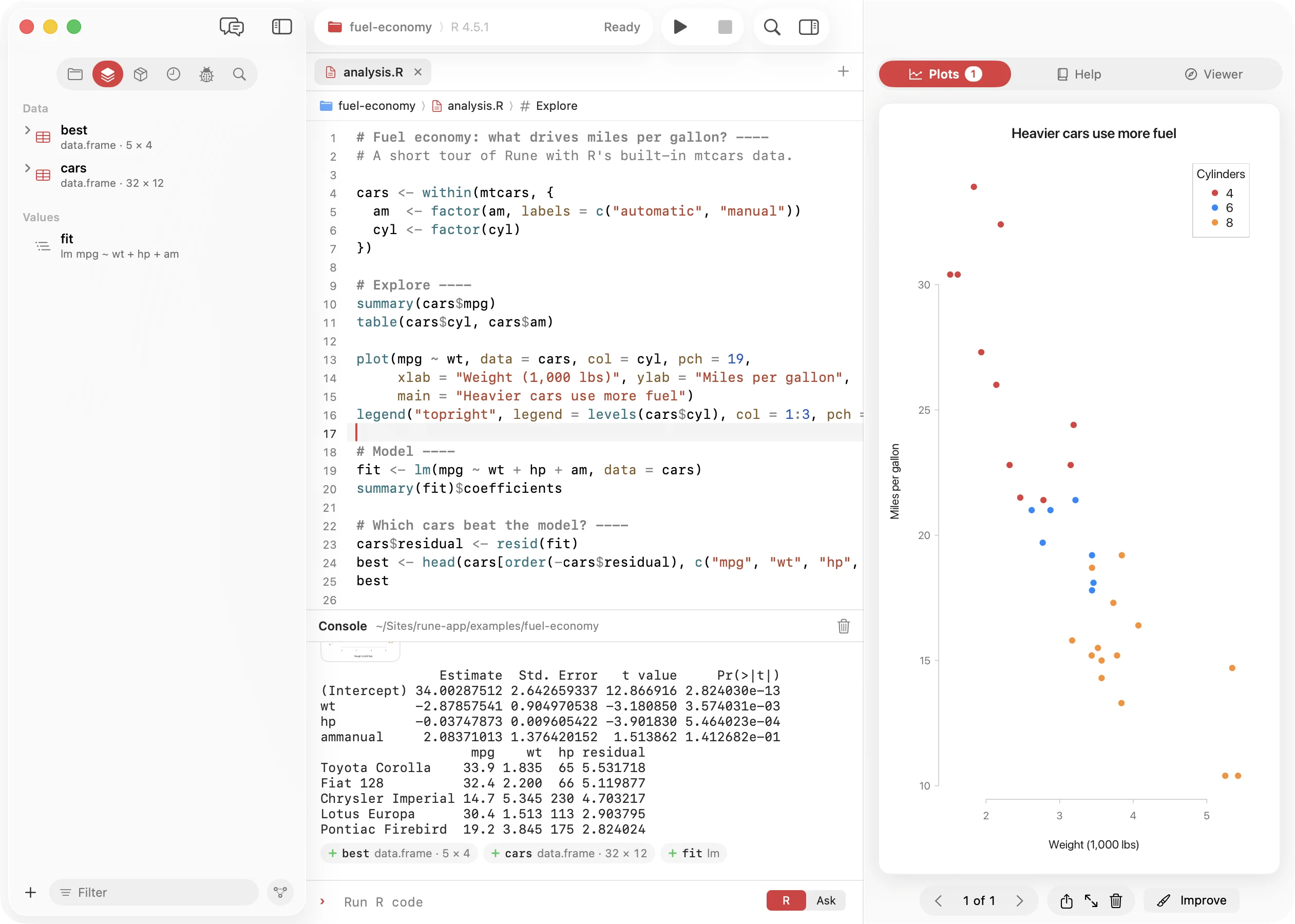
Left: navigator or assistant
The navigator has six tabs. ⌘0 swaps it for the assistant and back; View › Show Sidebar hides the column.
| Tab | Keys | What it holds |
|---|---|---|
| Files | ⌘1 | The project folder as a tree. |
| Workspace | ⌘2 | Objects in your session, and the workspace map. |
| Packages | ⌘3 | Installed packages: load, update, install, remove. |
| History | ⌘4 | Every command you ran in this project. |
| Debugger | ⌘5 | Call stack and variables while R is paused. The icon turns orange then. |
| Find | ⌘6 | Search and replace across files. |
Centre: documents and console
Open documents sit in tabs. A dot marks unsaved changes; the + button makes a new R script, and its menu offers R Markdown, Quarto and Open…. Below the tabs, the jump bar shows the path and the current section or function, and its outline menu lists every section, function, chunk and heading in the file.
The console sits below the editor. Drag the divider to resize it; double-click the divider to reset it. With no document open, the console fills the centre.
Right: the inspector
| Tab | Keys | What it shows |
|---|---|---|
| Plots | ⌥⌘1 | Your plots, with history and export. The tab shows how many there are. |
| Help | ⌥⌘2 | R's documentation. |
| Viewer | ⌥⌘3 | Knitted reports, htmlwidgets, Shiny apps, HTML, PDF and images. |
⌥⌘0 shows or hides the inspector.
Toolbar and activity
On the left, Run sources the script or knits a document (⇧⌘S) and Stop interrupts R (⌘.). In the middle, the activity capsule shows the project, the R version and what R is doing: running with a timer and queue, ready or failed with the last run, waiting for input, paused in the debugger, or starting.
Click the capsule for the session details: R version, working directory, process ID, object and plot counts, recent project folders, and Restart R, Interrupt and Clear Console. On the right sit the command palette (⌘K) and the inspector toggle.
Chapter 4
Editor
The editor knows R scripts (.R, .Rprofile), R Markdown (.Rmd) and Quarto (.qmd), with R highlighting inside {r} chunks. Other text files such as Markdown, JSON, YAML, SQL or Python open as plain text. Files over 50 MB are not opened.
Typing
- Highlighting that follows light and dark mode, line numbers, the current line and matching brackets.
- Brackets and quotes close themselves. Typing a closer steps over it, typing an opener around a selection wraps it, and Backspace removes an empty pair.
- Return keeps the indentation. Indent with 2 or 4 spaces; Backspace inside indentation goes back one step.
- ⌥- types
<-and ⇧⌘M types|>, but not in strings, comments or Markdown text. - Double-click selects a whole R name, such as
data.frame.
Completion and signature hints
Completions come from your live session. They appear after three letters, after $, @ and ::, and for arguments inside a call. Ask for them with ⌃Space or Tab after a name; accept with Return or Tab. After you type name(, the function's signature shows above the line until you leave the call.
Hover cards
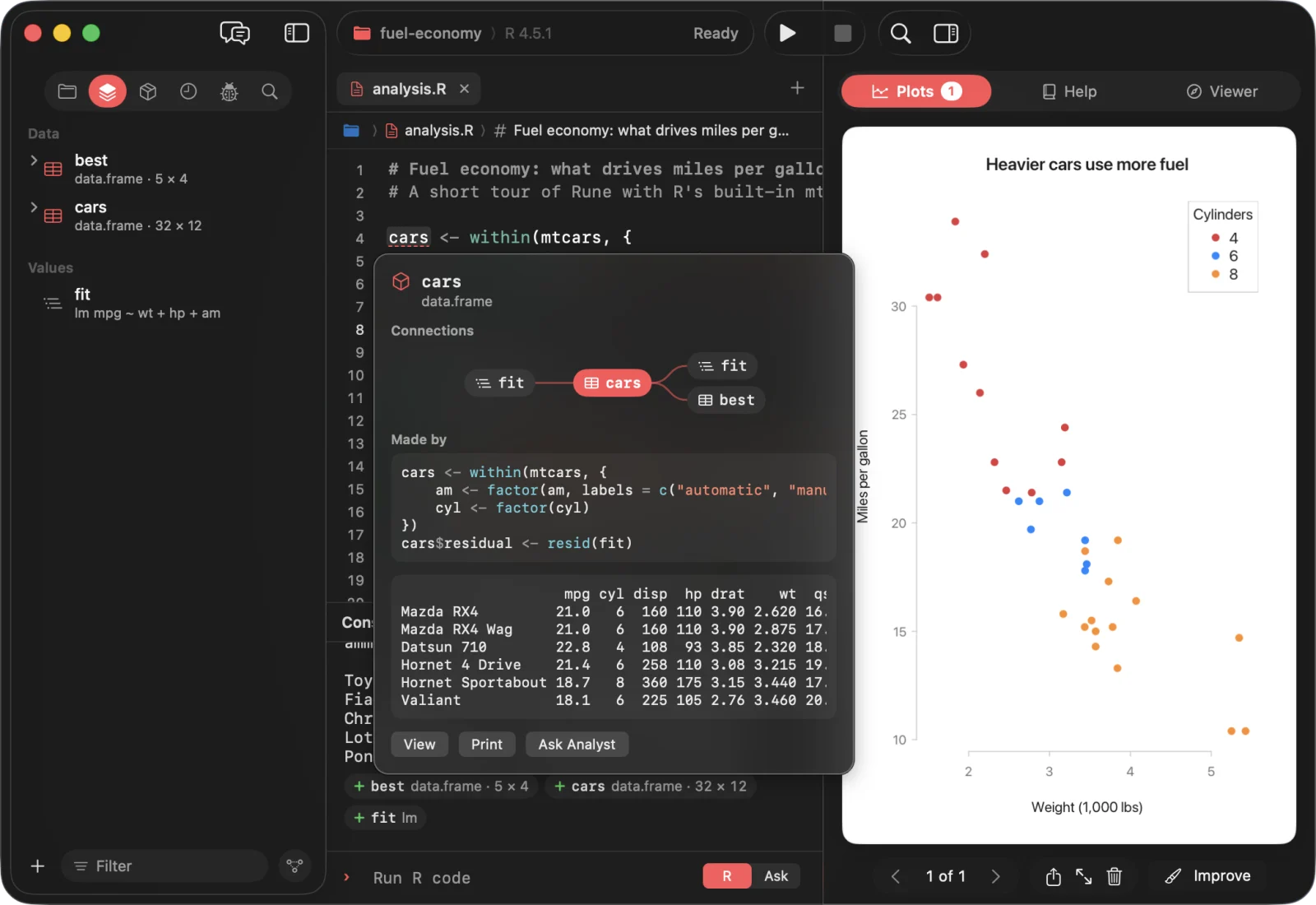
Rest the pointer on a name in the editor, the console, the workspace list, agent replies or help pages. The card depends on what the name is:
- ObjectWhat it was made from, what uses it, the code that made it and a preview. View, Print, Ask Analyst.
- ColumnValues, missing, unique, mean, median, SD, range and a histogram or top values. Summary, Plot.
- FunctionSignature and help text. Open Help, Explain.
- PackageIts documentation index.
⌘-click a name to open it: the data viewer for an object or column, help for a function, the index for a package. The delay is set in Settings › General.
Running code
| Command | Keys | What runs |
|---|---|---|
| Run Line or Selection | ⌘↩ | The selection, or the whole statement at the caret (even across lines). The caret moves to the next statement. |
| Run Section or Chunk | ⌥⌘↩ | The lines between section markers, or the current R chunk. |
| Run to Cursor | ⌥⌘B | Everything up to the caret's line. In R Markdown, the R chunks up to there. |
| Run All | ⇧⌘↩ | The whole script, or every chunk. |
| Source / Knit | ⇧⌘S | Saves, then source()s the script with its breakpoints, or knits the document. |
Sections and the outline
A comment ending in four or more dashes, equals signs or hashes starts a section: # Clean the data ----. Sections, functions defined with name <- function(, chunks and Markdown headings all appear in the jump bar's outline menu.
Syntax errors while you type
After a short pause, R parses the script, or each chunk, without running it. The first error gets a mark in the gutter with R's message and a squiggle under the spot. Turn it off in Settings › Editor.
Editing commands
- Code › Comment/Uncomment Lines ⌘/, Shift Right ⌘], Shift Left ⌘[, Reindent Lines ⌃I.
- Go to Line… ⌘L accepts
lineorline:column. - Insert Chunk ⌥⌘I in R Markdown and Quarto; inside a chunk it splits the chunk at the caret.
- Edit › Find: find ⌘F, find and replace ⌥⌘F, next ⌘G, previous ⇧⌘G, use selection ⌘E.
- Edit › Transformations: upper case, lower case, capitalise.
Write or change code with ⌘I
Press ⌘I and describe the code to write at the caret, or how the selected code should change. Quick actions: Explain, Document (comments and a roxygen2 header), Fix and Tidy. The change comes back as a proposal in the review bar, like any agent edit (see Reviewing edits). Esc cancels.
Chapter 5
Console
The console input is a small editor with highlighting, completion, signature hints and hover cards. It grows up to eight lines.
Typing and running
- Return runs the input when the code is complete; otherwise it adds a line. ⇧↩ always adds a line.
- ↑ and ↓ on the first or last line step through history. History is kept per project across launches.
- While R is busy, what you type is queued and runs next.
- Input goes to R only while R asks for it:
readline(),menu(),scan(),askYesNo()and the debugger. A keyboard icon replaces the prompt then. - Switch the R | Ask control to Ask to send the line to the Analyst instead of R.
Cells
Every run becomes a cell with its code and output. Output keeps its colours (cli and crayon get 256 colours), warnings get a label, and very long output keeps the first and latest lines. Plots appear as thumbnails; click one to open it in the Plots pane. Right-click a cell for Run Again, Copy Code, Insert into Script and Copy Output.
Workspace chips
Under each cell, chips show what the run did to your workspace.
A run that adds heavy shows + heavy data.frame · 11 × 12; filtering rows shows cars 1,204 → 987 rows; removing shows − tmp. New objects show their class and size; changes show rows, columns, length, class or value before and after. Click a chip to open the data or show the object. Turn chips off in Settings › General.
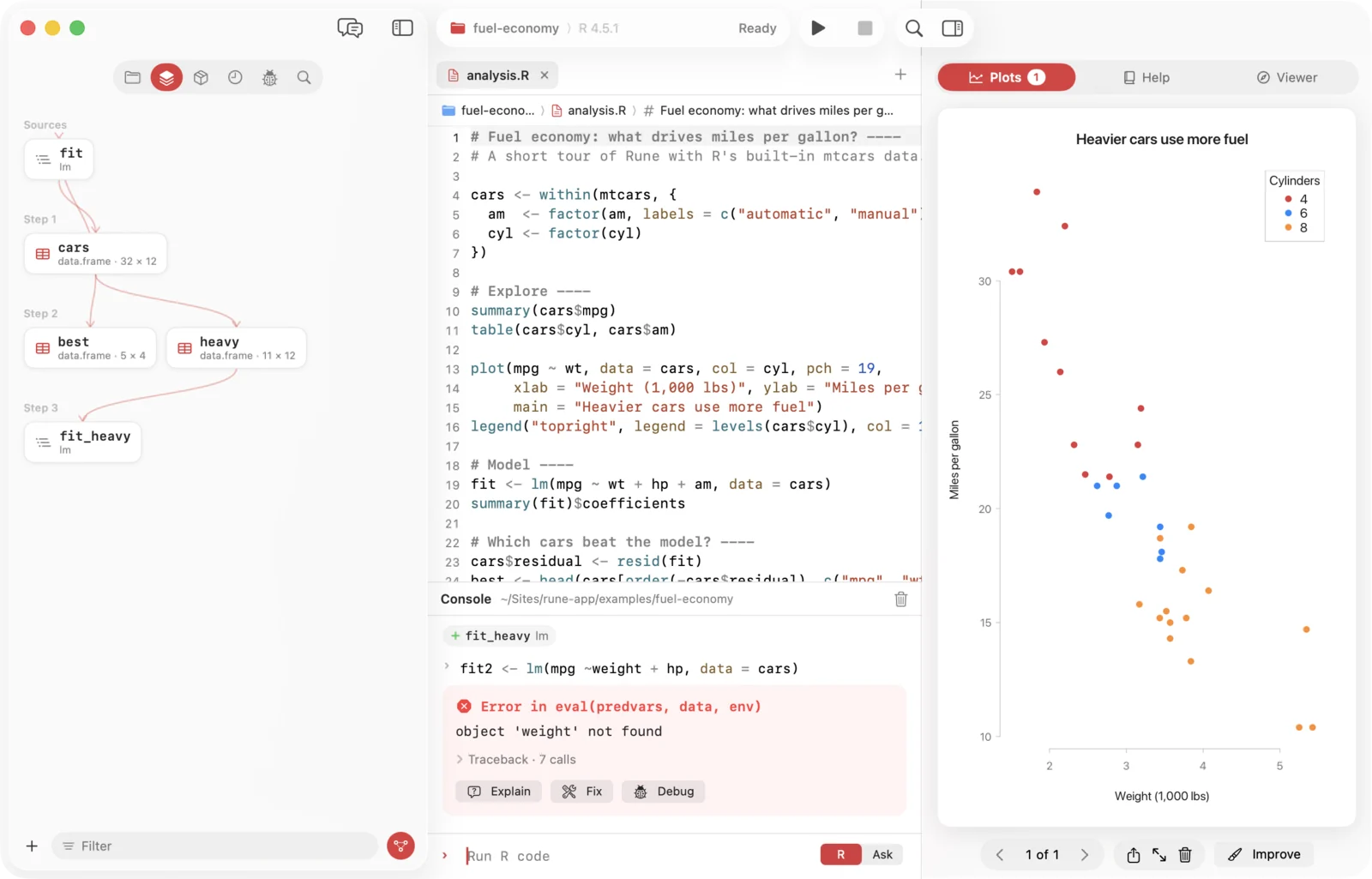
Errors
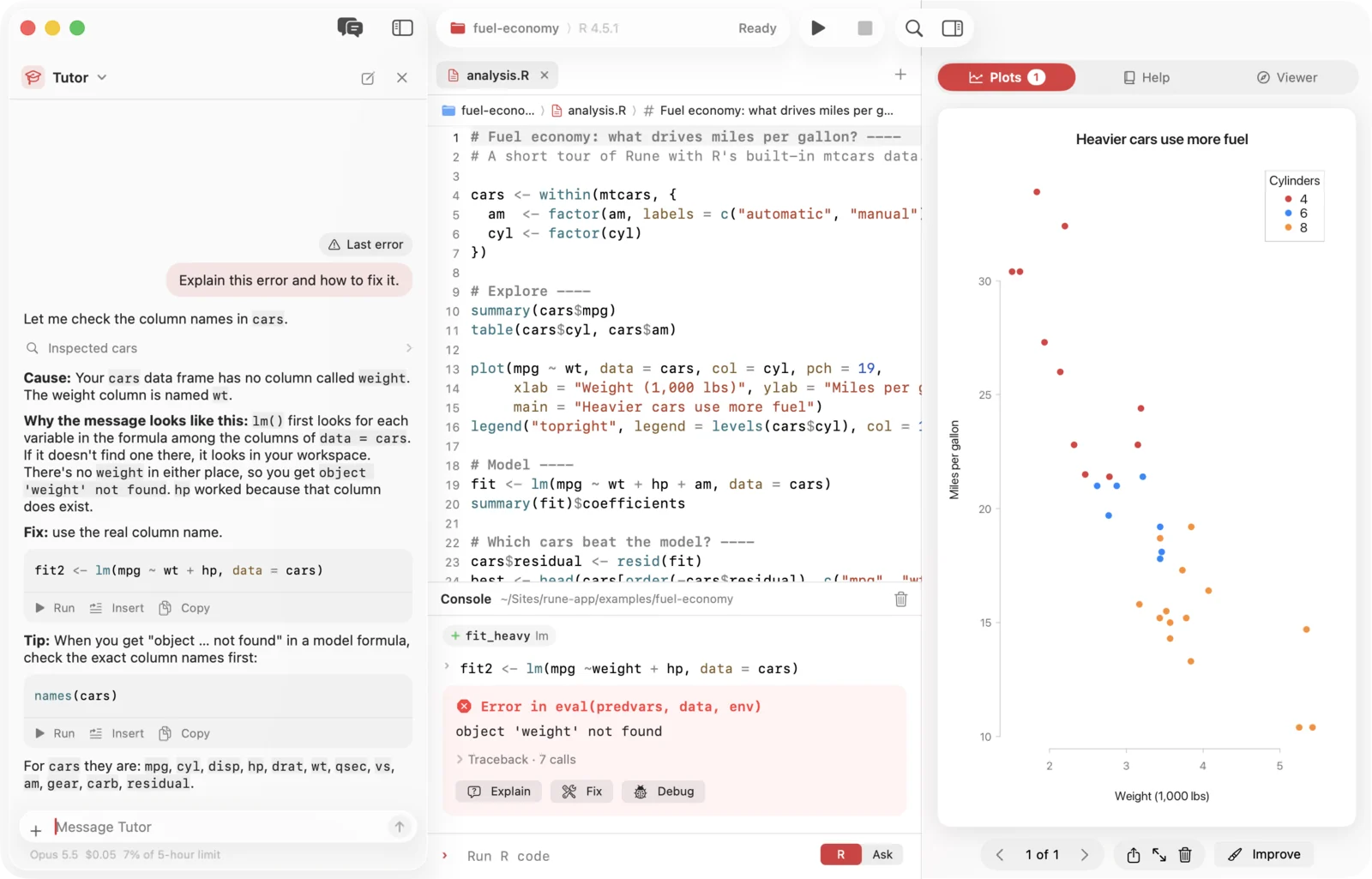
An error shows as a card with the message and a folded traceback; frames with a file location are clickable. Explain asks the Tutor, Fix asks the Analyst, and Debug runs the code again and pauses where it failed.
Session
- Session › Interrupt R ⌘., Restart R ⇧⌘0, Clear Console ⌃L, Set Working Directory… and Clear Workspace… (asks first).
- If R quits or crashes, Rune starts it again, at most three times a minute.
- If R takes more than 20 seconds to start, Rune offers Restart Without .Rprofile.
file.edit()opens the file in a Rune tab.browseURL()sends HTML to the viewer and web links to your browser.
Chapter 6
Workspace
The Workspace tab (⌘2) lists the objects in your session in three groups: Data, Values and Functions. Data frames expand to their columns, each with a type badge and its own hover card.
- Point at an object and the others light up as its inputs or as made from it.
- Double-click or Return opens data in the viewer and prints anything else.
- Drag an object into the editor to insert its name, quoted when needed.
- Right-click for View Data, Print, Structure, Summary, Debug Next Call, Describe with Analyst, Ask About This…, Copy Name and Remove.
- The filter field at the bottom narrows the list.
The workspace map
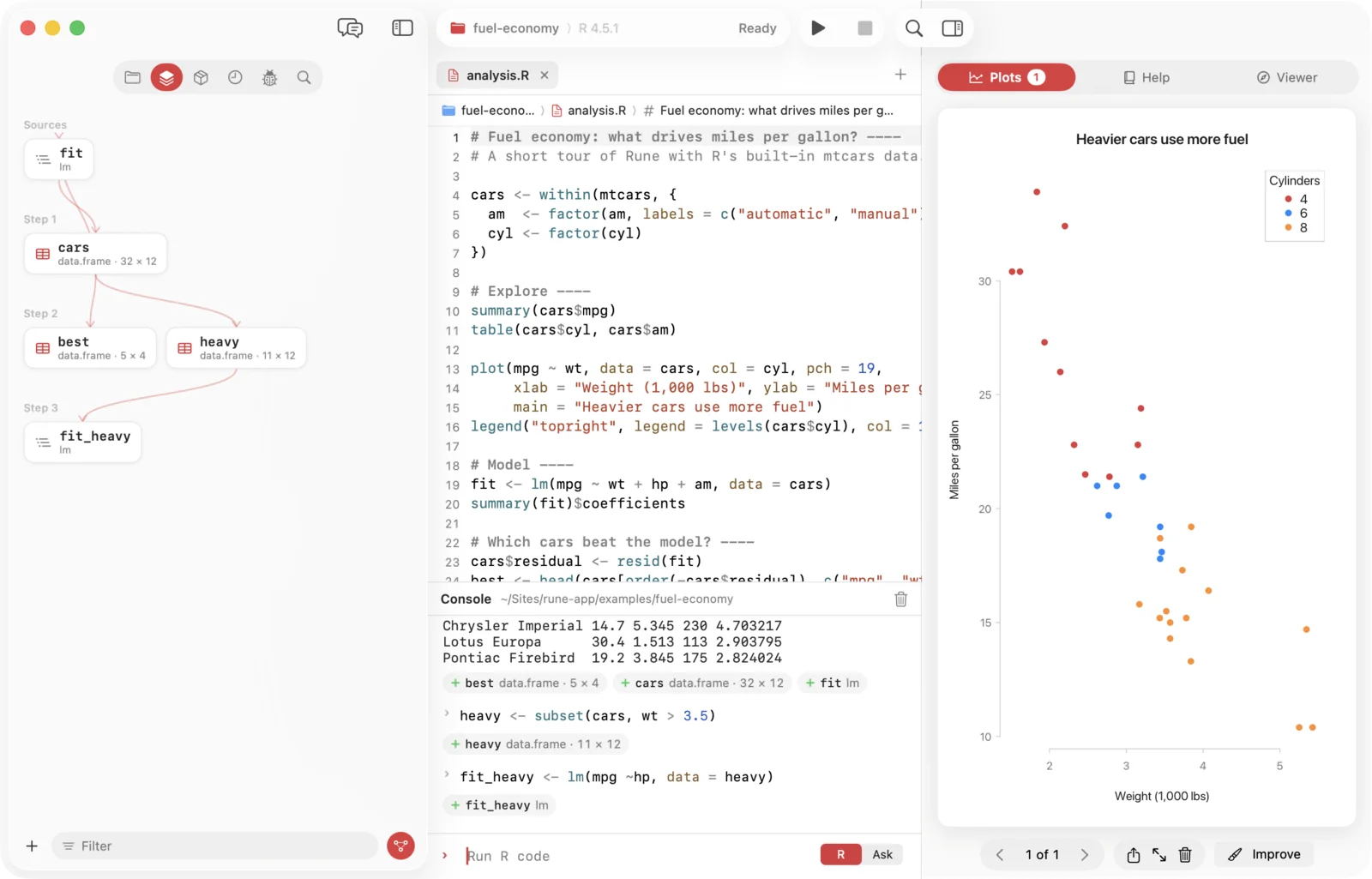
The map button in the filter bar draws your objects as a graph: sources on the left, then each step that was made from them, and a group for objects with no connection. Rune records these links from top-level assignments such as x <- f(a), x$col <- …, names(x) <- … and assign(). Hover, click and right-click work as in the list.
Chapter 7
Data viewer
Open a data frame with View(x), a double-click in the workspace, View on a hover card, ⌘-click or the command palette. It opens as a tab next to your scripts.
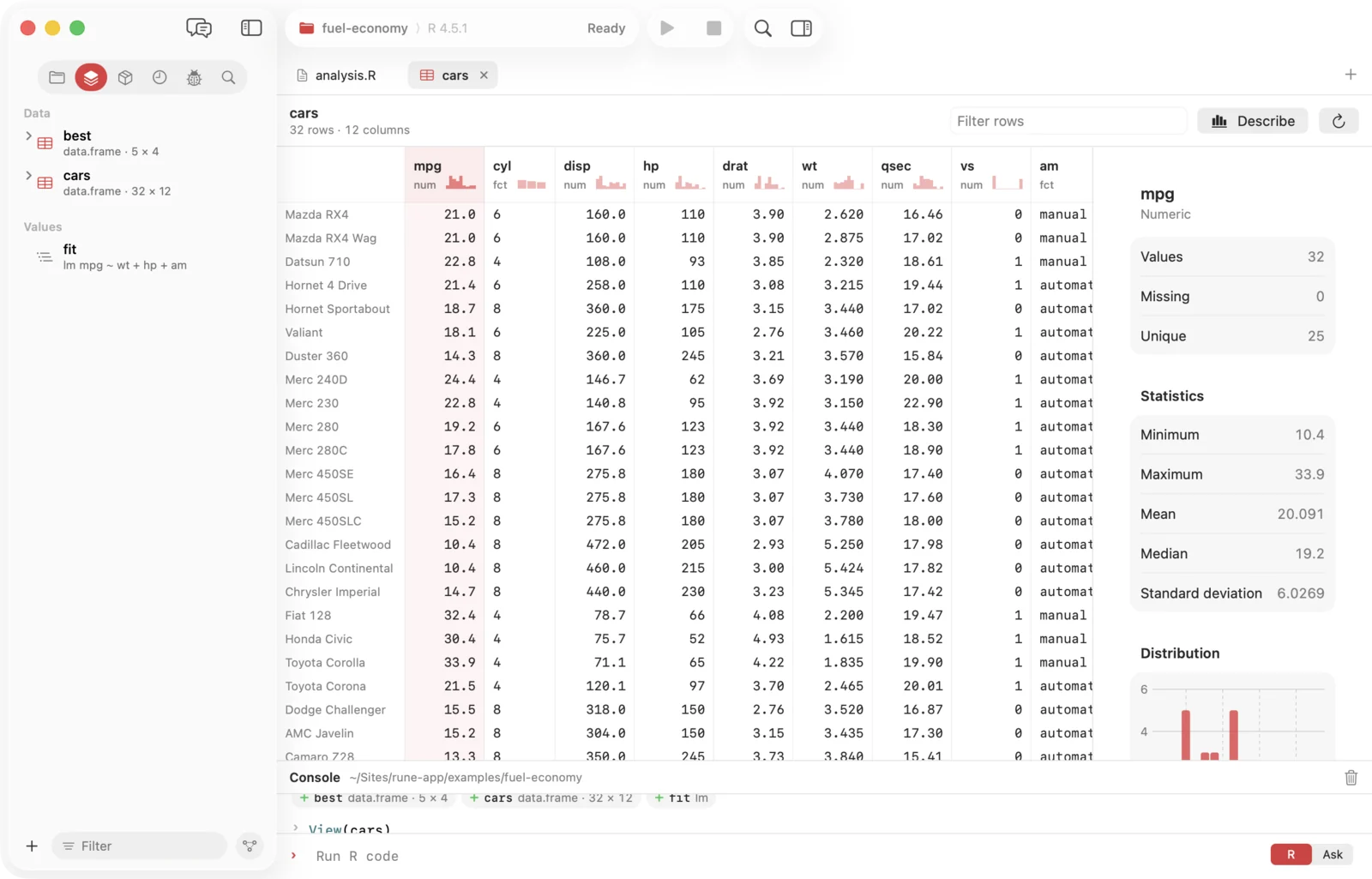
- Paging. Rows load in pages as you scroll, so millions of rows stay quick. The header shows rows and columns, or how many rows match the filter.
- Sort. Click a column header: ascending, descending, unsorted.
- Filter. Type in Filter rows to keep rows that contain the text in any column.
- Copy. ⌘C copies the selected rows with a header as tab-separated text; the column menu can copy a column as an R vector.
- Column summary. Every header shows its type and a small chart. Open the summary for values, missing, unique, min, max, mean, median, standard deviation, a histogram or the most frequent values.
- Describe asks the Analyst to profile the data. Reload fetches it again; open views also refresh after each run and keep sort, filter and scroll position.
Opening data files
Opening one of these files imports it into your session. The code runs visibly in the console, and the object is named after the file.
| File | Code Rune runs |
|---|---|
| CSV | read.csv() |
| TSV | read.delim() |
| Excel (xlsx, xls) | readxl::read_excel() |
| RDS | readRDS() |
| RData, rda | load() |
Chapter 8
Plots
History
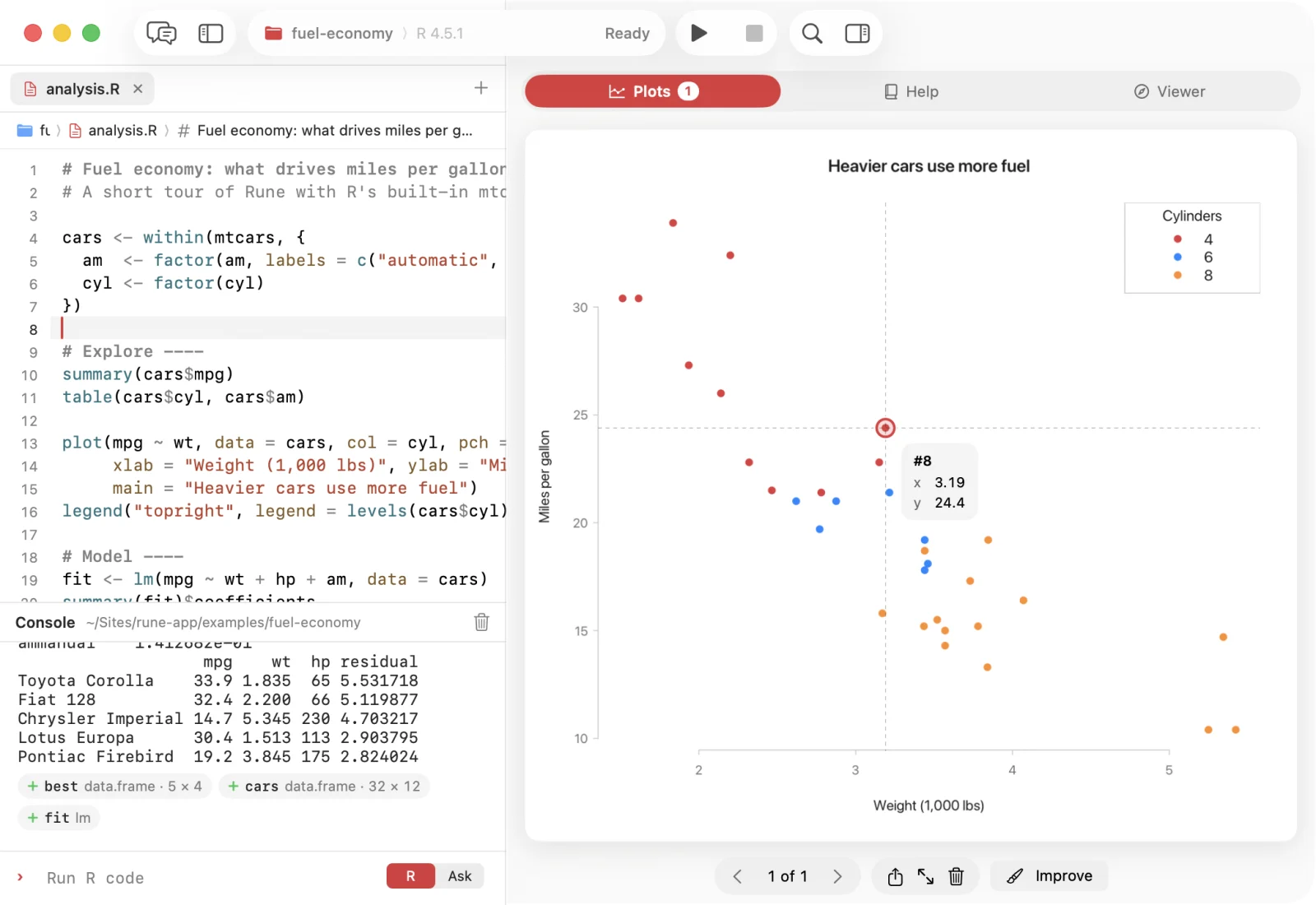
Every plot goes into the Plots pane (⌥⌘1). Step through them with the arrows or the thumbnail strip; remove one or clear them all. Plots redraw at the pane's size.
Theme
Modern (the default) uses the system font, your accent colour first and quiet axes, in light and dark. Classic R draws exactly like R.app. Your own colours and par() settings always win, and files you write with png() or pdf() get plain R. Choose in Settings › Plots.
Explore a plot
For base R graphics, a crosshair shows the position in data units, and the nearest point or the bar under the pointer shows in a callout. Drag across the plot to zoom; R redraws that range. Double-click, or Reset Zoom, to go back. Double-click an unzoomed plot to open it in its own sharp window.
Save and share
- Save as PNG…, PDF… or SVG… asks for the size in inches (the pane's size to start with) and, for PNG, the resolution: 72, 144, 300 or 600 dpi, with the pixel size shown as you choose.
- Copy Image, or drag the plot from its edge into any app.
- Improve under the plot asks the Plot Designer; Explain This Plot asks the Tutor.
Chapter 9
Help
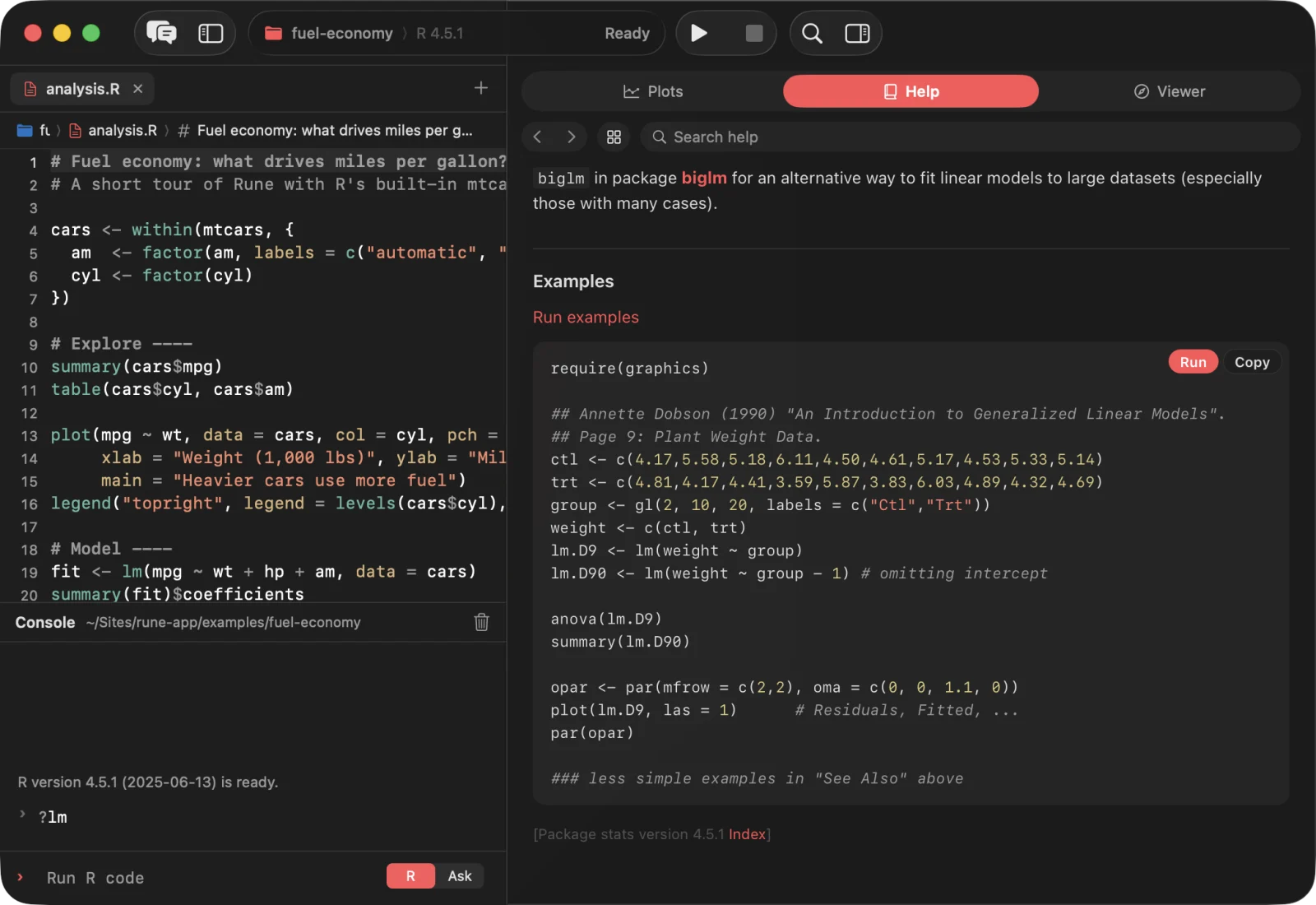
The Help pane (⌥⌘2) shows R's HTML documentation from your running session, in native type and your accent colour. help(), ?, vignette() and help.start() open here.
- Back, forward, all packages, and a search field for every installed package.
- Every code example has Run and Copy. Examples and demos only run when you click.
- Names in code show hover cards for what they are in your session.
- Long indexes get an A to Z bar and a filter.
- Links to other sites open in your browser when you click them.
Chapter 10
Viewer and knitting
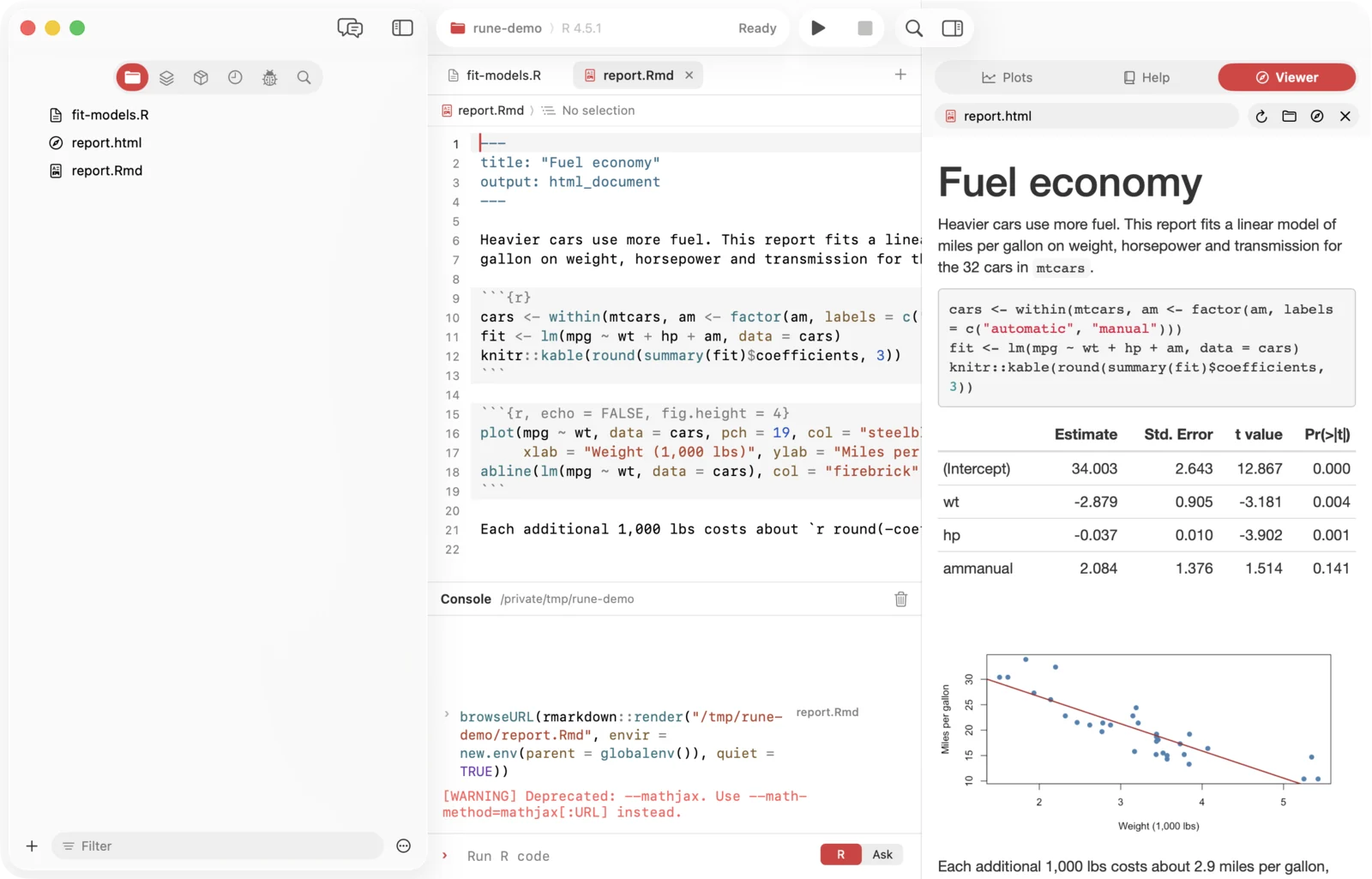
The Viewer (⌥⌘3) shows knitted reports, htmlwidgets, Shiny apps running on your Mac, and HTML, PDF and image files. Its header has Reload, Show in Finder, Open in Browser and Clear.
Knitting
- Press ⇧⌘S or Run in an R Markdown or Quarto document. Rune saves it, knits it and opens the result in the viewer, with progress while it works.
.Rmdknits withrmarkdown::render()in a fresh environment..qmdrenders with Quarto when it is installed, otherwise with rmarkdown.- If Pandoc is missing, Rune offers Install Pandoc with Homebrew and knits right after, or a download link.
- If knitting fails, the viewer says so with Knit again and Ask the Analyst to fix it.
Widgets and Shiny
htmlwidgets such as plotly, leaflet, DT or dygraphs, and Shiny apps, open in the viewer instead of your browser. Reports and widgets can load scripts from the web, for example from a CDN.
Chapter 11
Packages
The Packages tab (⌘3) lists installed packages with their version.
- Tick a package to load it with
library(); untick to detach it. - Install… installs from CRAN. Separate several names with spaces or commas; names from the CRAN index are suggested as you type.
- The ⋯ menu has Check for Updates, Update All and Refresh. Packages with an update show the new version.
- Right-click for Show Documentation, Load or Detach, Update and Remove… (asks first).
- The CRAN mirror is set in Settings › R.
Chapter 12
Files, find and history
Files
The Files tab (⌘1) shows the project folder, or the working directory without a project. Arrow keys move and expand, Return opens, ⌘⌫ moves to the Trash after asking. Rename in place, and drag files out to other apps.
Right-click a file for Open, Import Dataset, Open as Text, Source, Open with Default App, Rename, Reveal in Finder, Copy Path and Move to Trash. Right-click a folder for New File, New Folder, Set as Working Directory and Open as Project.
Files open by type: text in the editor; HTML, PDF and images in the viewer; data files are imported; other binary files such as Office documents, archives, SPSS, Stata, SAS, Parquet or SQLite open in their default app.
Find in files
Edit › Find › Find in Files… (⇧⌘F, or ⌥⇧⌘F with replace) opens the Find tab.
- Options: Match Case, Whole Words, Regular Expression.
- Scope: the Project, the Open Documents or the Current File. Your home folder is never searched as a whole, and
.git,renv,packrat,node_modulesand hidden files are skipped. - Results are grouped by file; click one to jump there.
- Replace works on one match or one file; Replace All asks first. Open documents change in the editor, and other files keep their encoding and line endings.
History
The History tab (⌘4) lists every command, newest first, with time and where it came from. Search it, double-click to put a command back in the console, or select several and insert them into your script.
Chapter 13
Debugger
Breakpoints stop inside functions.
- In a saved script, click the line number of a line inside a function. A red marker shows the breakpoint.
- Source the script with ⇧⌘S. This defines the function with its breakpoints.
- Call the function, from the console or another script. R stops at the line, the toolbar says Paused in debugger, and the console prompt turns into
Browse[1]. - The Debugger tab (⌘5) shows the call stack and the variables of the current frame. Inspect anything in the console.
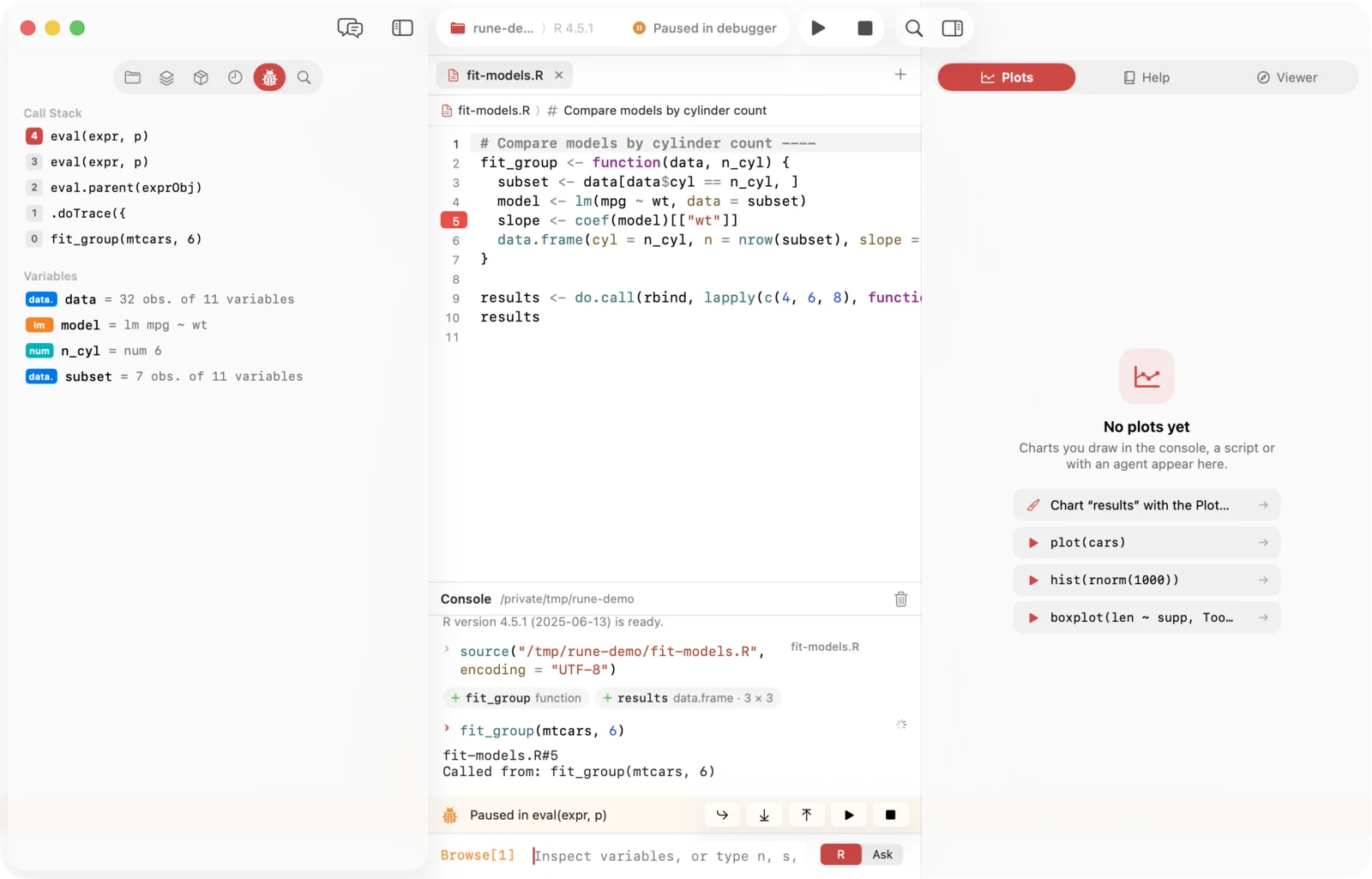
NoteLines at the top level of a script do not stop, and neither do calls made while the script is being sourced. For those, use Debug on an error card, Session › Debug on Error, or put browser() in the code.
| Action | Keys | In the console |
|---|---|---|
| Next line | F10 | n |
| Step into | F11 | s |
| Finish function | ⇧F11 | f |
| Continue | ⇧F5 | c |
| Stop debugging | ⇧⌘F5 | Q |
The same buttons appear in a bar above the console input while R is paused. Session › Debug on Error pauses whenever an error happens, and Debug on an error card reruns the failed code to pause there. Debug Next Call on a function in the workspace steps into its next call.
Chapter 14
Assistant and agents
The assistant (⌘0) holds five agents that run on the Claude Code CLI with your Claude account. They reach your live session only through Rune's own tools; they have no file or shell access of their own.
The five agents
| Agent | For | May |
|---|---|---|
| Analyst | Explores data and answers questions by running R, in small verified steps. | Run code, propose edits, install packages |
| Tutor | Explains errors, output and R concepts: the root cause, then a minimal fix. | Propose edits |
| Plot Designer | Turns rough charts into clear, colour-blind-safe figures, with ggplot2 when installed. | Run code, propose edits, install packages |
| Reviewer | Checks correctness, reproducibility and clarity, with findings by severity and line. | Propose edits |
| Reporter | Writes an R Markdown report from your session and never invents results. | Run code, propose edits |
All agents look before they act, never delete or overwrite your objects unless you ask, only report results they have seen, and reply in your language.
What agents can read
Reading never runs code and never asks. Agents can list your workspace, inspect an object (str, summary, head), read data rows, look at a plot as an image, read the open script with the caret and selection, read help pages, read the recent console and list packages.
Approvals and Auto-run
When an agent wants to run code, a card asks "Run this code in your session?" with the agent's reason as a quote. You can edit the code before it runs. Run is ⌃⌘↩; Skip needs a click, and Esc does not skip.
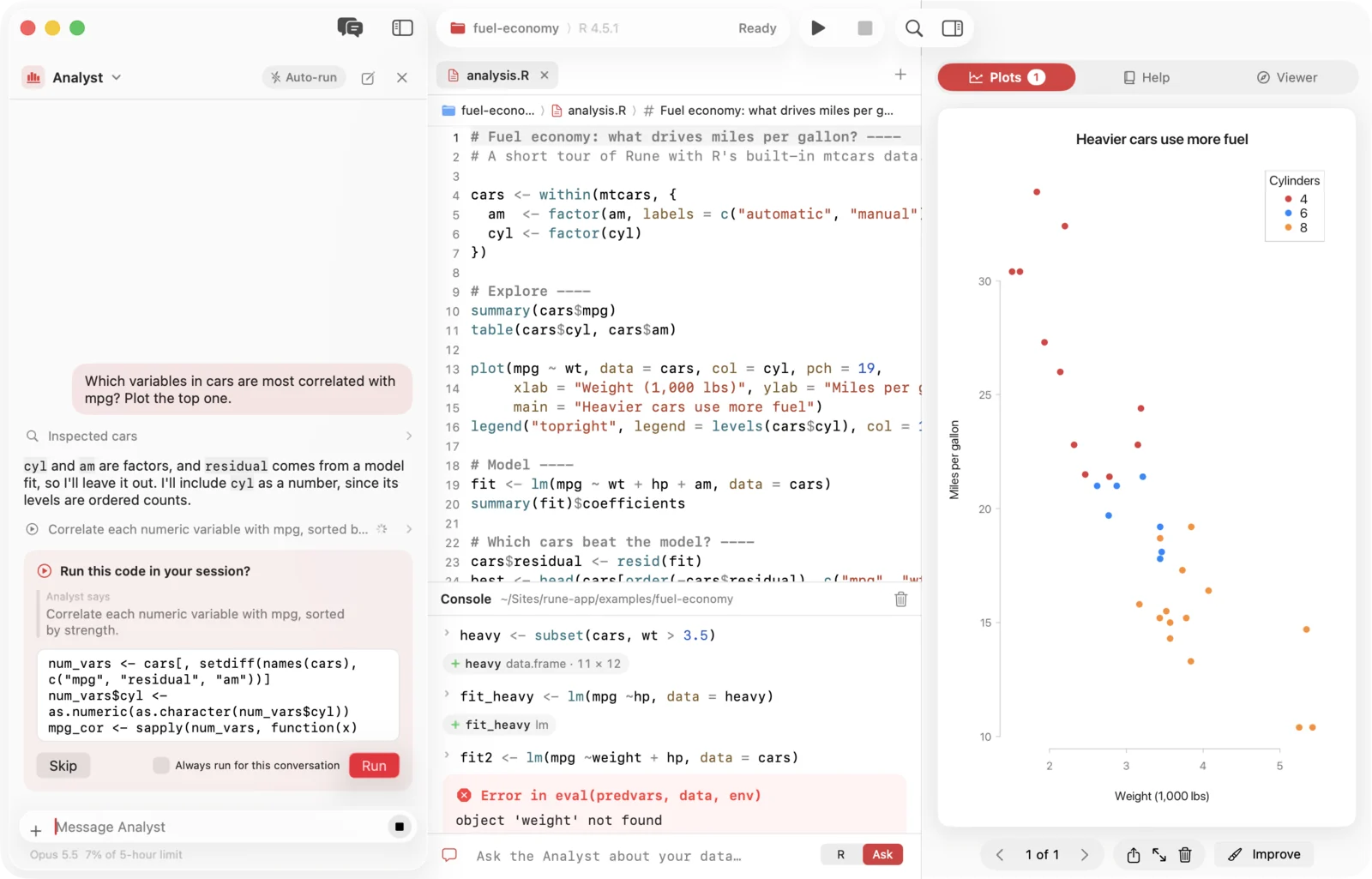
Auto-runOff by default. Turn it on for new conversations in Settings, for this conversation in the header, or with "Always run for this conversation" on a card. Rune asks before turning it on, and Return cancels. Package installs always ask.
Reviewing edits
A proposed script edit is applied in place and tinted, with a bar that says which agent suggests it and why. Accept (⌥⇧⌘↩) keeps it, Discard (Esc) restores your text. Only one edit waits at a time. Until you decide, that script does not run, source, knit or save, and autosave leaves the change out. The Reporter writes new documents the same way.
Where to call them
- Editor⌘I, Code › Explain Selection, Review Script
- ConsoleAsk mode, Explain and Fix on errors
- DataDescribe on a data frame, Ask About This…
- PlotsImprove and Explain This Plot
- Anywhere⇧⌘L Ask the Analyst, or ask in ⌘K
- MenuAssistant › New Conversation, Write Session Report
The conversation
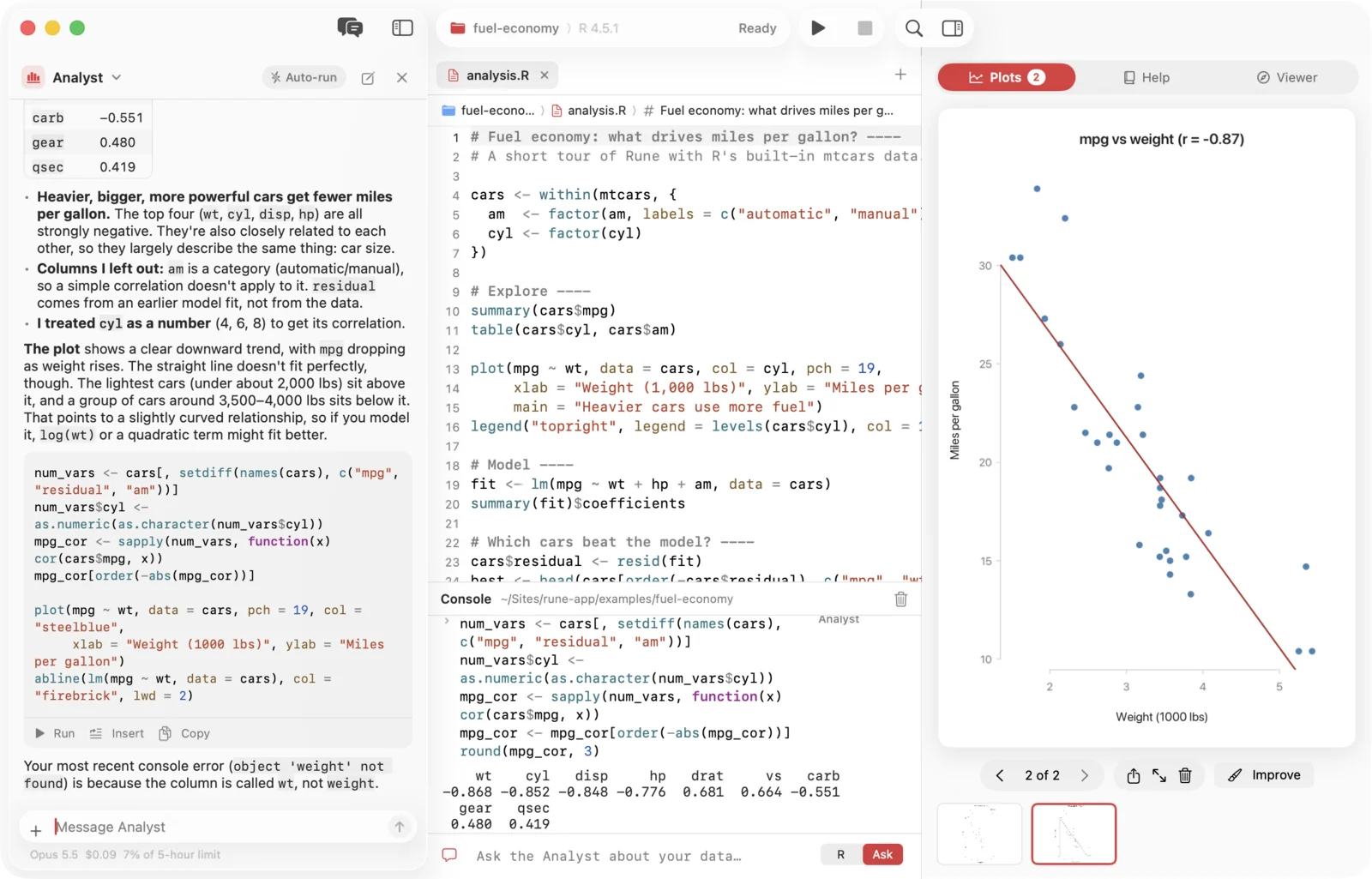
- The gallery shows each agent with starter questions. The + in the composer attaches the script or selection, the current plot, the last error or an object.
- Return sends, ⇧↩ adds a line, and Stop ends a reply. Code blocks in replies have Run, Insert and Copy.
- When an agent waits for you, the assistant button shows a badge and the Dock icon bounces.
- Under the composer: the model, what the reply cost and how much of your five-hour limit is used. Turn this off in Settings › General.
Models and instructions
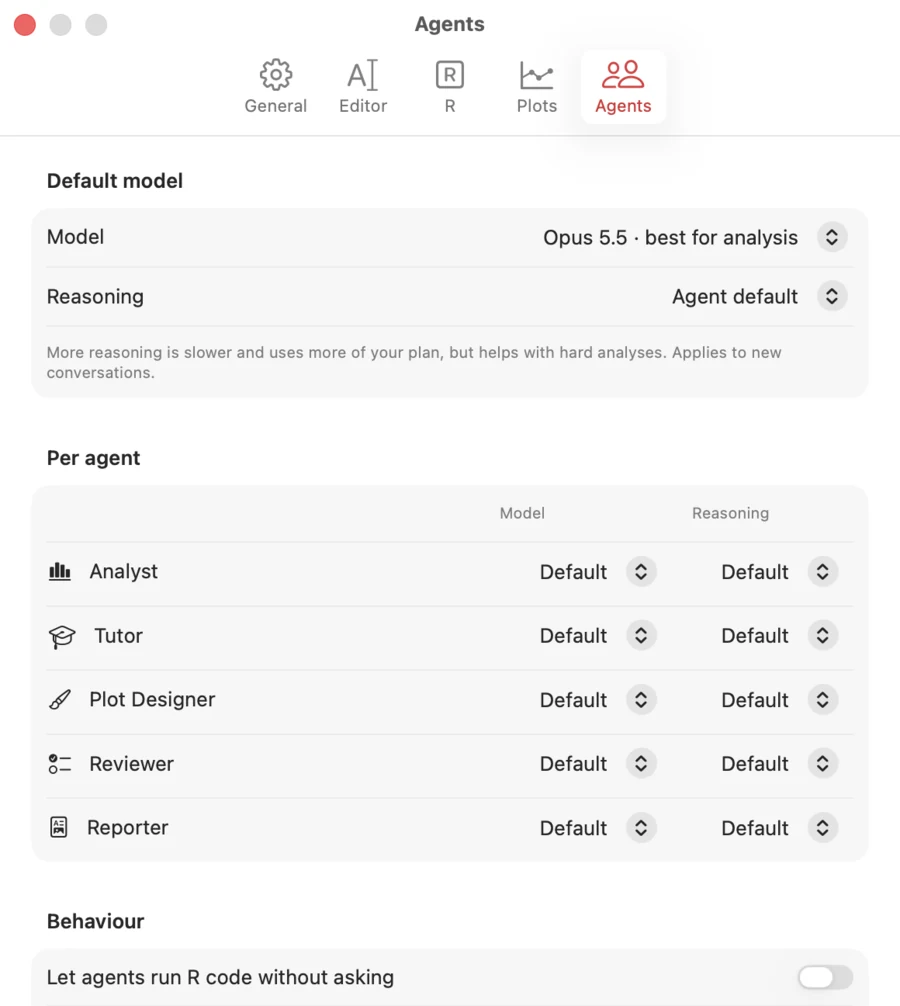
In Settings › Agents, pick the default model (Opus 5.5 to start with, or Fable 5.1, Sonnet 5, Haiku 4.5) and reasoning effort, and override both per agent. Set the reply language and instructions that every agent follows. Changes apply to new conversations.
Saved conversations
Conversations are kept per project folder, up to 50, and listed in the conversation menu when the project opens. The next message continues the same Claude Code session; if Claude Code no longer has it, the agent starts fresh and says so. Approvals that were waiting come back as Skipped, and Auto-run is off. Delete Conversation… and Delete All Conversations… remove them.
Chapter 15
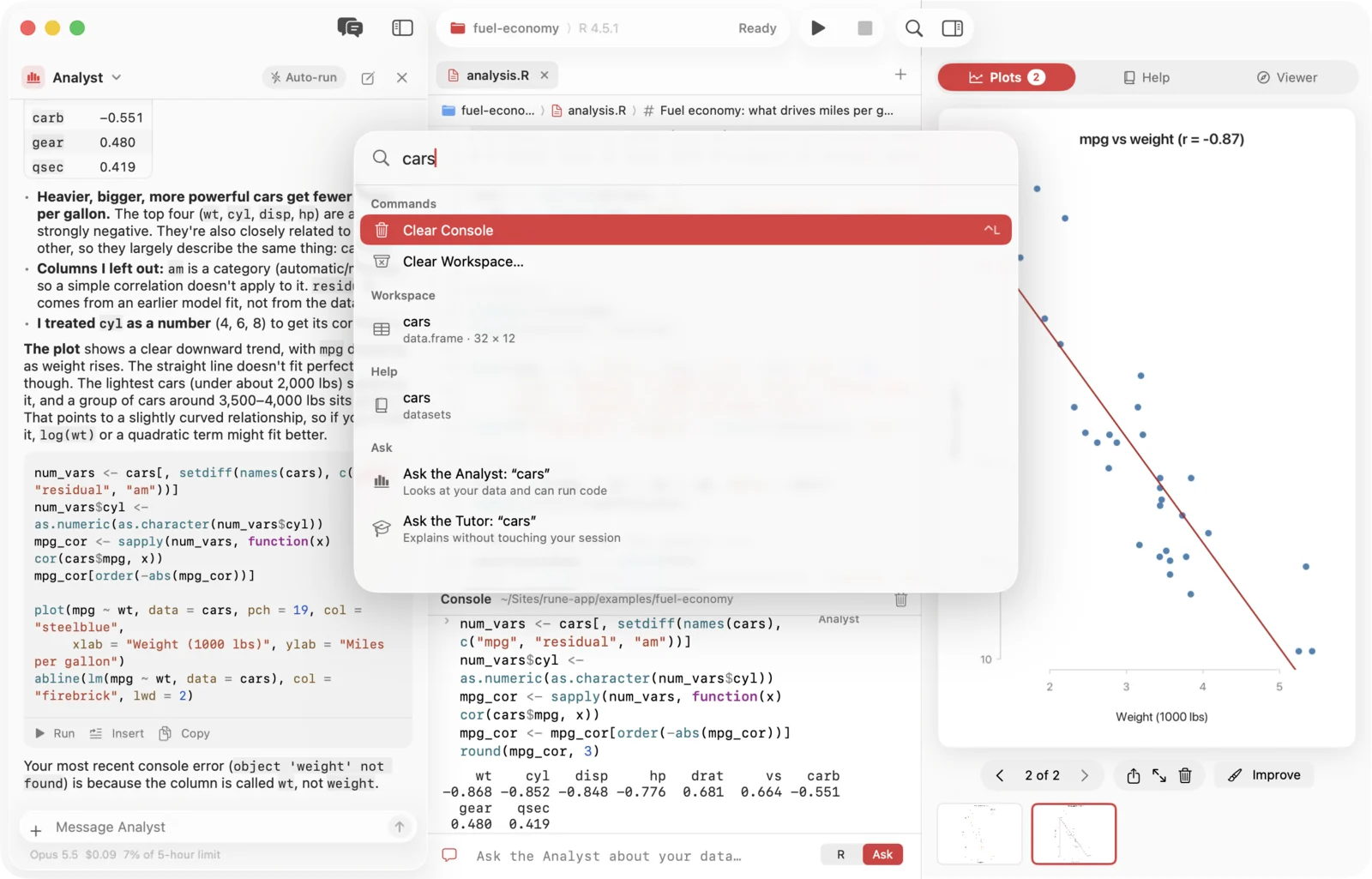
Command palette
Press ⌘K and type. The palette matches loosely and searches:
- Commands, from New Script and Knit to Restart R, Install Packages… and every pane.
- Workspace objects: data opens in the viewer, anything else is printed.
- Files in the project.
- Help topics.
- Ask: send what you typed to the Analyst or the Tutor.
↑ and ↓ choose, Return runs, Esc closes.
Chapter 16
Projects and sessions
Projects
A project is a folder. Open it with Open Folder…, Open Recent, Open as Project in the Files tab, or by dropping a folder on Rune. R starts in the folder, so its .Rprofile and renv load. If the session still has objects or is running, Rune asks before it switches and restarts R. Each project keeps its own tabs, console history and conversations, and two windows never share one project's session.
What comes back
- The first window reopens the last project (Settings › General).
- Open tabs come back per project. Unsaved and untitled documents are autosaved every few seconds and when Rune goes to the background, and return as modified documents.
- Closing a window or quitting with unsaved documents asks: Save All, Don't Save or Cancel.
Files that change on disk
When you come back to Rune, unmodified documents reload by themselves. A document you have changed shows a bar with Reload and Keep Mine, and saving over an outside change asks first. Deleted files are marked and keep their text.
Encodings and line endings
Rune keeps what it finds: UTF-8 (with or without BOM), UTF-16, Windows Latin 1 and ISO Latin 1; LF, CRLF and CR line endings. The jump bar shows them when they are not UTF-8 and LF. If a character does not fit the file's encoding, Rune offers to save as UTF-8.
Chapter 17
Settings
Open with ⌘,. Defaults are in the right column.
General
| Setting | Choices | Default |
|---|---|---|
| Appearance | Match System, Light, Dark | Match System |
| Reopen the last project folder at launch | On, off | On |
| Show hover details | Instantly, Quickly, After a pause, Never | Quickly |
| Clear the console when R restarts | On, off | Off |
| Show which objects each run added or changed | On, off | On |
| Show cost and usage under the conversation | On, off | On |
Editor
| Setting | Choices | Default |
|---|---|---|
| Editor font size | 9 to 24 pt | 13 pt |
| Console font size | 9 to 24 pt | 12.5 pt |
| Indentation | 2 spaces, 4 spaces | 2 spaces |
| Wrap long lines | On, off | Off |
| Show line numbers | On, off | On |
| Highlight the current line | On, off | On |
| Close brackets and quotes automatically | On, off | On |
| Show syntax errors while typing | On, off | On |
R
| Setting | Choices | Default |
|---|---|---|
| R executable | Automatic, or Choose… a path | Automatic |
| Package mirror | Automatic (cloud.r-project.org), Germany, Austria, Switzerland, Posit Package Manager | Automatic |
| Significant digits in output | 3 to 15 | 7 |
| Startup code | R code that runs quietly each time R starts | Empty |
Plots
| Setting | Choices | Default |
|---|---|---|
| Plot style | Modern, Classic R | Modern |
Agents
| Setting | Choices | Default |
|---|---|---|
| Default model | Opus 5.5, Fable 5.1, Sonnet 5, Haiku 4.5 | Opus 5.5 |
| Reasoning | Agent default, Low, Medium, High, Extra high, Maximum | Agent default |
| Per agent model and reasoning | Default or any of the above | Default |
| Let agents run R code without asking | On, off (asks before turning on) | Off |
| Reply language | Same as my question, Deutsch, English | Same as my question |
| Your instructions | Text every agent follows | Empty |
| Claude Code CLI path | Automatic, or a path | Automatic |
Chapter 18
Keyboard shortcuts
The same list lives in Rune under Help › Keyboard Shortcuts, where you can search it.
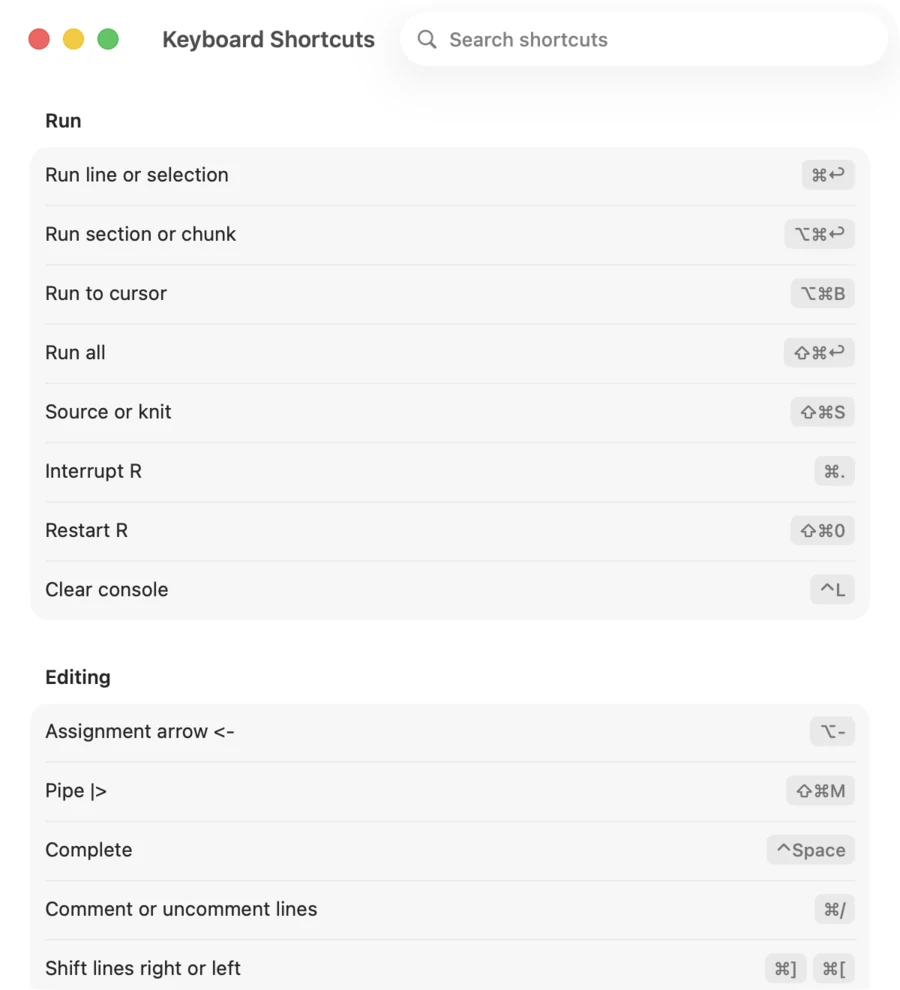
Run and session
| Action | Keys |
|---|---|
| Run line or selection | ⌘↩ |
| Run section or chunk | ⌥⌘↩ |
| Run to cursor | ⌥⌘B |
| Run all | ⇧⌘↩ |
| Source or knit | ⇧⌘S |
| Interrupt R | ⌘. |
| Restart R | ⇧⌘0 |
| Clear console | ⌃L |
Editing
| Action | Keys |
|---|---|
Assignment arrow <- | ⌥- |
Pipe |> | ⇧⌘M |
| Complete | ⌃Space, or Tab after a name |
| Comment or uncomment | ⌘/ |
| Shift right, shift left | ⌘] ⌘[ |
| Reindent | ⌃I |
| Insert chunk | ⌥⌘I |
| Go to line | ⌘L |
| Write or change code with the assistant | ⌘I |
| Open what is behind a name | ⌘-click |
Console
| Action | Keys |
|---|---|
| Run input (when complete) | ↩ |
| New line | ⇧↩ |
| Previous, next command | ↑ ↓ |
Find
| Action | Keys |
|---|---|
| Find, find and replace | ⌘F ⌥⌘F |
| Next, previous | ⌘G ⇧⌘G |
| Use selection for find | ⌘E |
| Find in files, with replace | ⇧⌘F ⌥⇧⌘F |
View
| Action | Keys |
|---|---|
| Command palette | ⌘K |
| Assistant or navigator | ⌘0 |
| Inspector | ⌥⌘0 |
| Files, Workspace, Packages, History, Debugger, Find | ⌘1 to ⌘6 |
| Plots, Help, Viewer | ⌥⌘1 to ⌥⌘3 |
| Focus editor, focus console | ⌃1 ⌃2 |
| Next tab, previous tab | ⇧⌘] ⇧⌘[ |
Debugger
| Action | Keys |
|---|---|
| Next, step into, finish | F10 F11 ⇧F11 |
| Continue, stop | ⇧F5 ⇧⌘F5 |
Assistant
| Action | Keys |
|---|---|
| Ask the Analyst | ⇧⌘L |
| Run or install on an approval card | ⌃⌘↩ |
| Accept, discard a proposed edit | ⌥⇧⌘↩ Esc |
Files and windows
| Action | Keys |
|---|---|
| New script, new window | ⌘N ⌥⌘N |
| Open, open folder | ⌘O ⇧⌘O |
| Save, save as, save all | ⌘S ⌥⌘S ⌥⇧⌘S |
| Close tab, close window | ⌘W ⇧⌘W |
| Settings | ⌘, |
| Move to Trash (Files tab) | ⌘⌫ |
Chapter 19
Privacy and security
Rune has no analytics, crash reporting, accounts or update checks, and the app itself makes no requests to the internet. Network traffic comes from these places only.
Agents
When you use the assistant, Rune starts the Claude Code CLI, which sends your messages and everything the agent reads through Rune's tools to Anthropic: workspace summaries, data rows, plots as images, the open script, the console, help pages, the package list and the output of code it runs. Claude Code's own terms and settings apply.
- Claude Code keeps a transcript of every conversation, including what the tools returned, in
~/.claude/projects/-Users-<you>-Library-Application-Support-Rune-Agents. Delete that folder after working with sensitive data. - Rune keeps its own copy per project in
~/Library/Application Support/Rune/Conversations. Remove it with Delete Conversation… or Delete All Conversations…. - Rune serves the agent tools on
127.0.0.1on a random port, with a token per conversation. Nothing listens on other interfaces.
Everything else
- R: your own code, and CRAN when you install packages, open the Install sheet or check for updates.
- Homebrew, when you let Rune install Pandoc.
- Web content in the viewer, such as scripts that reports or widgets load. Links to other sites open in your browser.
Safeguards
- Agents ask before running code; installs always ask; script edits wait for Accept.
- Object and column names from your data are always quoted as R names, never run as code.
- Messages between R and Rune carry a secret per session, so printed text cannot imitate them.
- Help never serves files outside R, its packages and the session's temporary folder, and runs examples only when you click. R's own help server is not started.
Chapter 20
Troubleshooting
"Apple could not verify Rune is free of malware"
This build is not notarized. Follow If macOS blocks the first launch: System Settings › Privacy & Security › Open Anyway.
Rune says R is not installed
Install R from CRAN, then click Try Again. If R lives somewhere else, choose it in Settings › R; Rune flags a path that is not an executable.
R takes forever to start
After 20 seconds Rune offers Restart Without .Rprofile. Something in the project's .Rprofile, or in the startup code in Settings › R, is usually waiting.
The assistant says Claude Code is missing or too old
Rune needs Claude Code 2.1.76 or later. Run claude update in Terminal. If it is installed in an unusual place, set the path in Settings › Agents.
Knitting asks for Pandoc
Click Install Pandoc with Homebrew, or install Pandoc yourself. Rune also uses the copy inside RStudio or Quarto. Make sure the rmarkdown package is installed.
Run and Save do nothing on a script
An agent edit is waiting for review. Accept or Discard it in the bar above the editor first.
Breakpoints do not stop
Breakpoints stop inside functions. Source the script (⇧⌘S), then call the function. Top-level lines, and calls made while the script is being sourced, do not stop; use Debug on an error or browser() there.
A data file opened in another app
Formats R cannot read without a package, such as SPSS, Stata, SAS, Parquet or SQLite, open in their default app. Read them in R with the matching package.
Chapter 21
Build from source
Only the Xcode Command Line Tools are needed (Swift 6.2 or later, macOS 26 SDK). There is no Xcode project and no third-party dependency.
| Command | What it does |
|---|---|
scripts/build-app.sh | Builds build/Rune.app, ad-hoc signed. |
swift run Rune | Runs from the source tree without a bundle. |
swift run RuneSelfTest --with-r | Self-checks, including live checks against R. |
scripts/release.sh | Signs, optionally notarizes, and packages the disk image with a checksum. |